Nothing has appeared yet?
Check that your professional invited the same email you used to sign in. Let them know if you chose a private relay address. Try Check again after access is assigned.
Find the shoots shared with you, view your finished photos and save the versions you need. Use your phone or download to your Mac.
Screenshots show the real app with demo accounts and example images. Your photos, names and available options may differ by app version. Tap a screenshot to enlarge it.
You do not need to buy cloud storage just to view or download a professional’s shared shoot.
Install Movon World, then sign in using the account your professional invited. Choose Photo & Video Recipient if asked for your profile type.
Open the professional’s invitation and follow its instructions. If it provides an invitation code, use the app’s Open an invitation in your profile to enter it. If you have no collections yet, the invitation card is also shown on the home screen. If you use Apple’s private relay email, tell your professional which account needs access.
No collection yet? Confirm the email with your professional, then use Check again after they share the shoot.
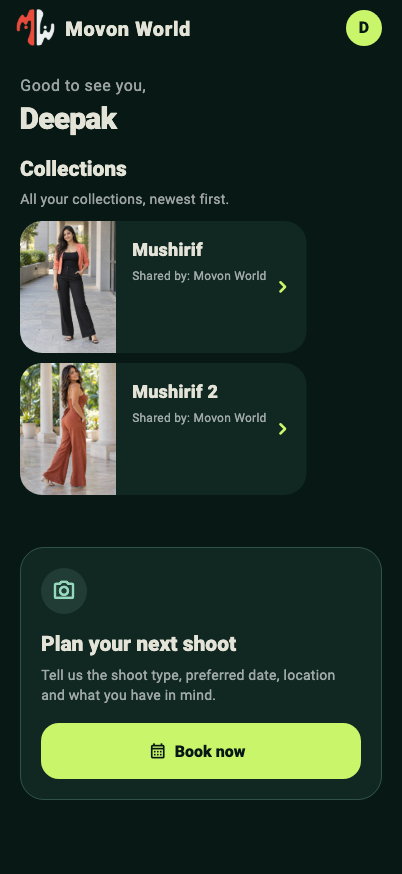
Your home screen lists all your Collections, with the newest first. Collections shared by Movon World, other professionals and your own saved copies appear together. Check Shared by to identify who provided each shoot.
Open a collection to find Signature Edits for finished photos, followed by RAW files with separate photos and videos when originals have been shared.
 Enlarge screenshot ↗
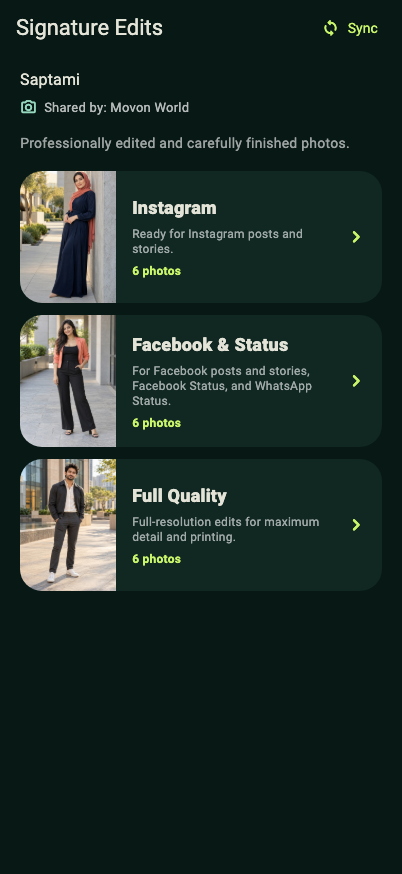
In Signature Edits, choose the folder you need. Facebook & Status is for social posts and status images; Instagram contains edits prepared for Instagram; Full Quality contains the professional’s highest-quality finished files.
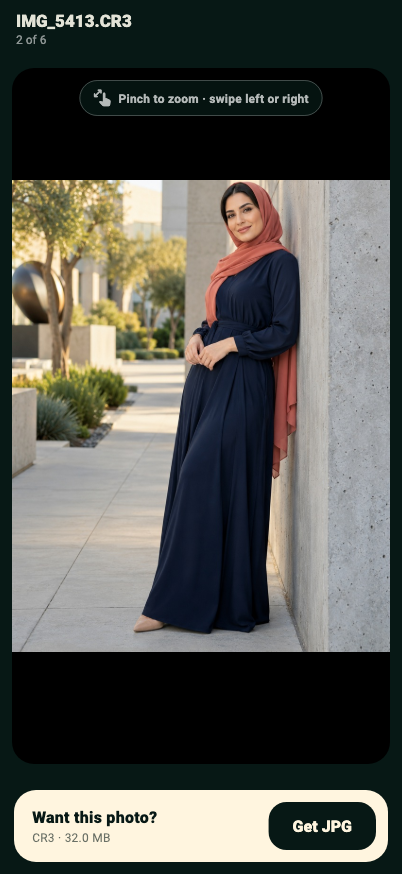
Tap a photo to open it, swipe left or right to browse, and pinch to zoom. If new edits were just released, use Sync beside Signature Edits to refresh.
 Enlarge screenshot ↗
Use the download action in the photo viewer and allow photo-library access if your phone asks. For RAW collections, tap Get JPG, then choose the output version shown in the app. A rewarded ad may be shown before the download starts.
For supported Signature Edits, Share to Instagram can prepare Feed 4:5, Story 9:16 or Original. Review the crop, choose Instagram in the share options, paste the copied caption if needed, and publish inside Instagram.
A downloaded video stays a video. It does not go through the RAW-to-JPEG photo conversion.
 Enlarge screenshot ↗
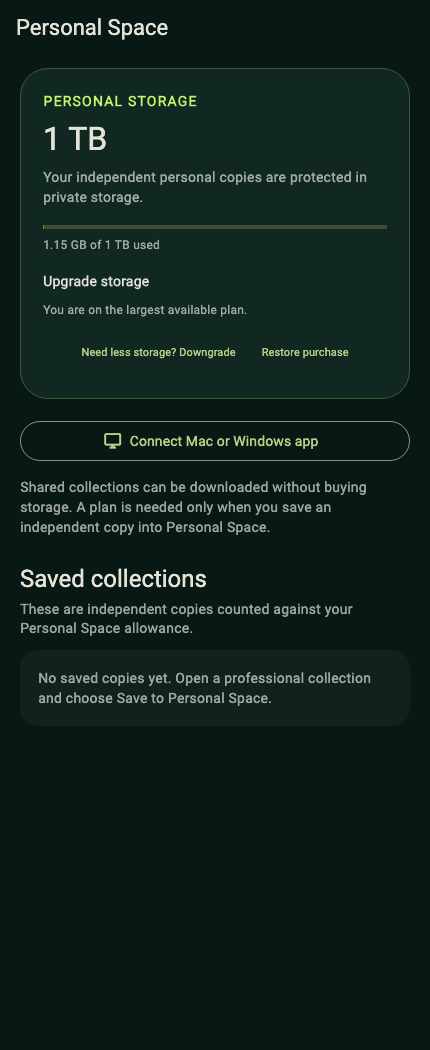
To keep a shoot in your own cloud space, first purchase a storage plan in the mobile app. Open the shared shoot and choose Save to Personal Space. This creates a separate copy and uses your storage allowance.
Open your profile and choose Purchase storage plans to see your Personal Space usage, manage saved copies and connect a computer. Deleting your saved copy does not delete the professional’s original. Ordinary shared downloads do not require a storage subscription.
 Enlarge screenshot ↗
Your Mac connection uses the same account as your phone. There is no separate website sign-in.
Open the Movon World Mac app to display a QR code. On your phone, open Personal Space and tap Connect Mac or Windows app. Allow camera access, scan the QR code and approve the connection.
Wait for the Mac’s connecting indicator to finish. Only scan a code on a computer you trust. Get it from the Mac download page, open the ZIP and move Movon World to Applications. Windows is coming soon.
The Mac landing page lists all your Collections together. Each collection shows who shared it, its size and whether it is your saved copy.
Click Download to computer on a shared collection, then choose a destination folder. You can queue another collection while a download runs. Keep the app open until it reports completion.
A storage plan is required for Save to Personal Space, but not for downloading a shared collection to your Mac.
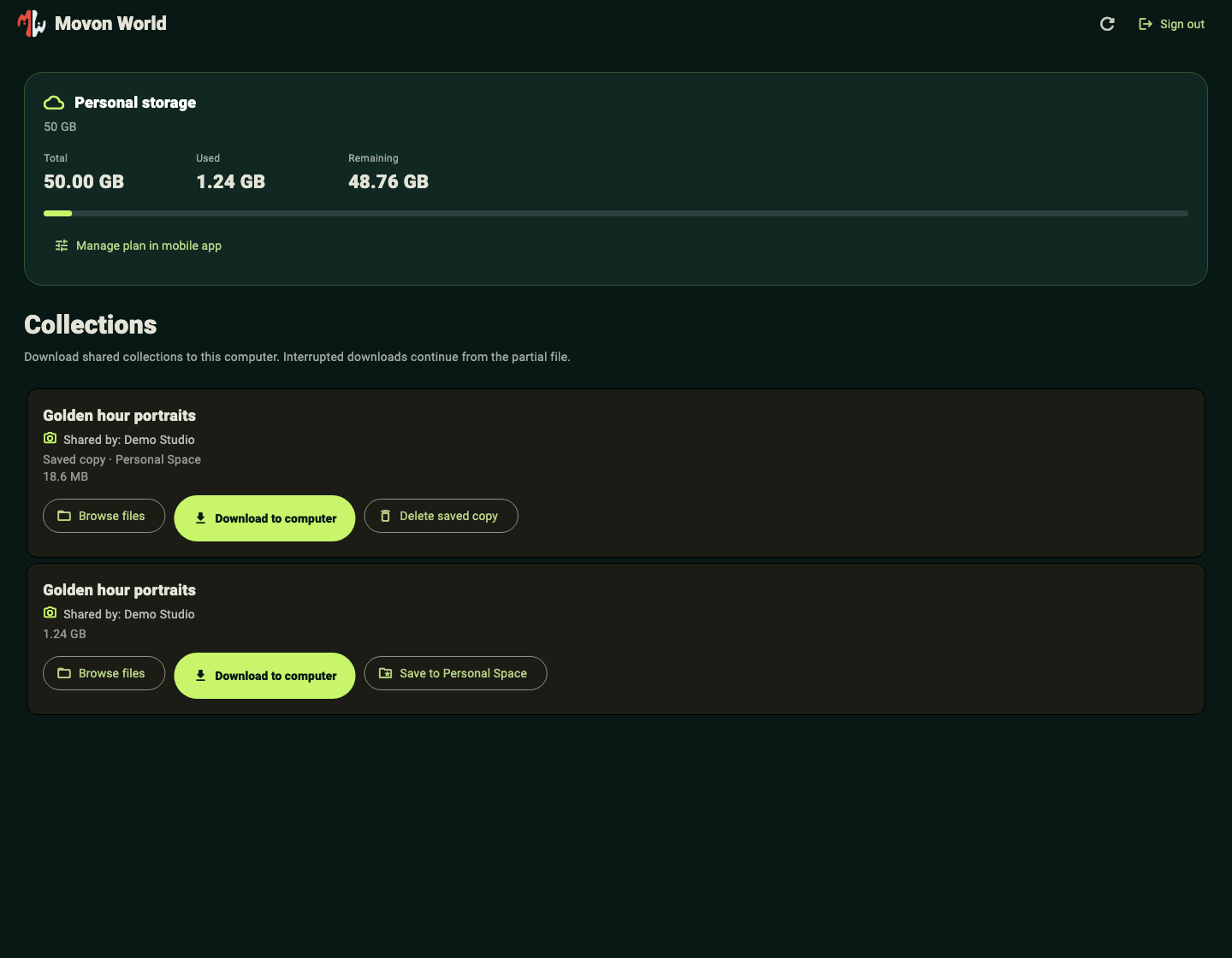 Enlarge screenshot ↗
On a Personal Space collection, click Browse files. Open Signature Edits or RAW files, then a subfolder. Use the sidebar and breadcrumb trail to move between folders.
Search by filename, sort by name, and switch between thumbnail grid and list views. Browsing does not create another saved cloud copy.
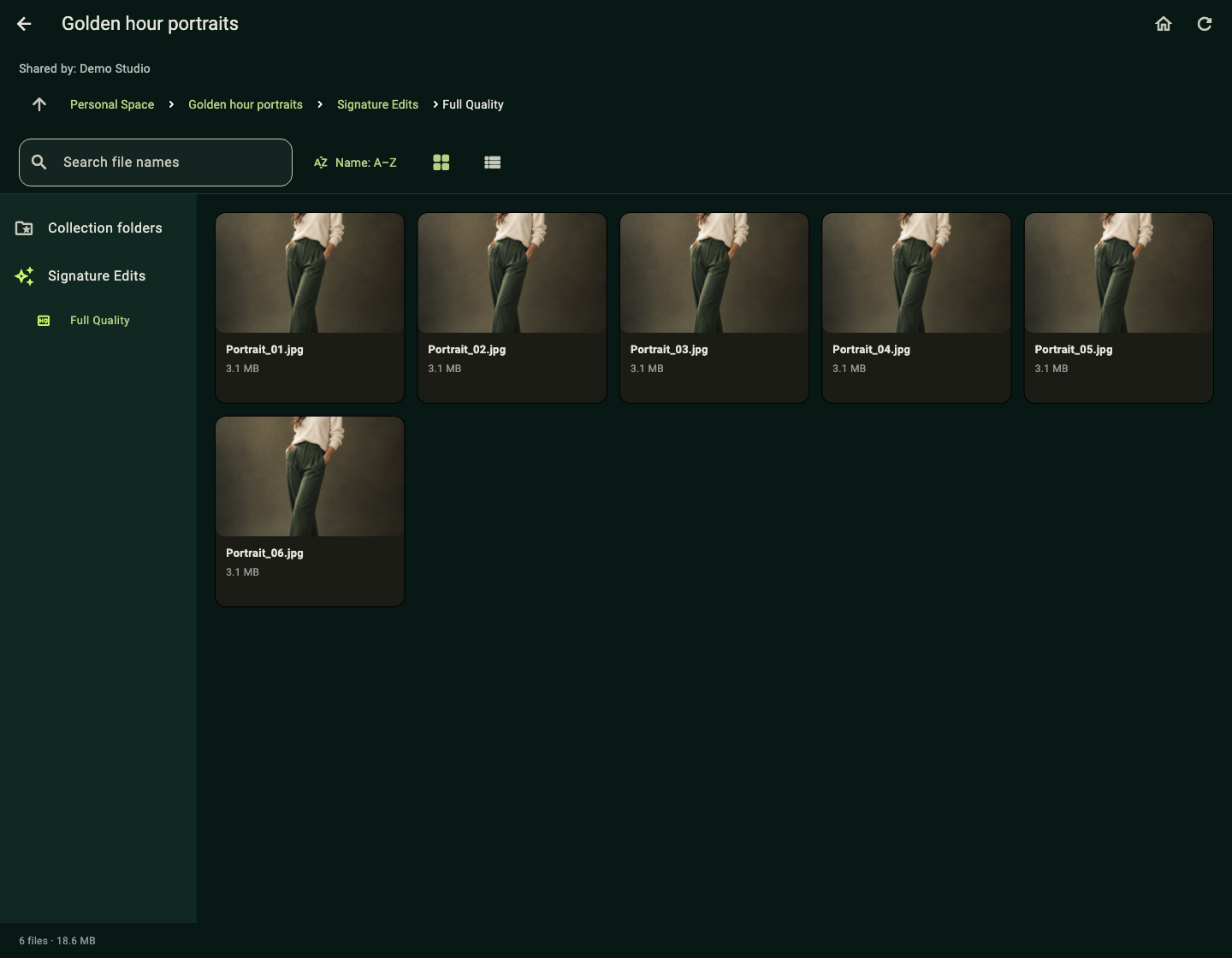 Enlarge screenshot ↗
Click a thumbnail to open the larger preview. Pinch or scroll to zoom, drag to inspect, and use the previous/next controls or arrow keys to move through the current folder’s files.
Click Download and choose a folder to save that individual file. Wait for the completed message. RAW previews use an available camera/compatibility image; videos show a poster frame and can be downloaded for playback.
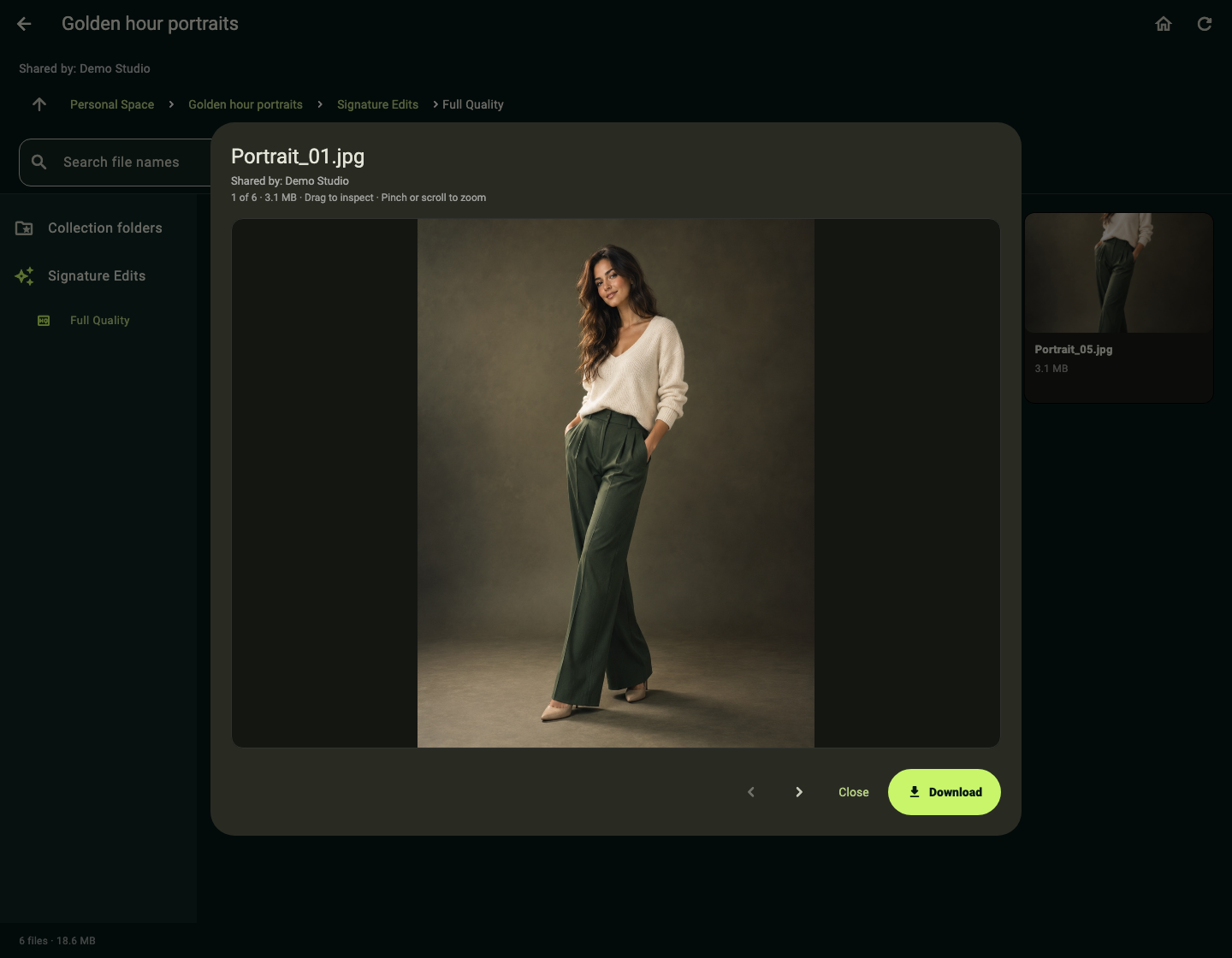 Enlarge screenshot ↗
Check that your professional invited the same email you used to sign in. Let them know if you chose a private relay address. Try Check again after access is assigned.
Enable Notifications in the profile menu and allow them in your phone’s settings. Alerts require permission, an internet connection and the professional’s release.
Gallery downloads need space on your device. Personal Space copies need a paid cloud plan and available quota. These are separate storage limits.
Open Professional Pool from Home to search the professionals who shared with you and manage blocked accounts. Before blocking, you can save hosted collections to Personal Space, download files manually, open storage plans, or block without saving. Linked galleries currently use manual downloads. Saving must complete before automatic blocking; failed saves leave access open. Independent Personal Space copies remain available. Unblocking restores only your side of a block; sharing must still be available from the other account.